photoshop tutorial · intermediate · 30 min
Gold Foil Thai Text Effects in Photoshop

Information verified as of April 2026
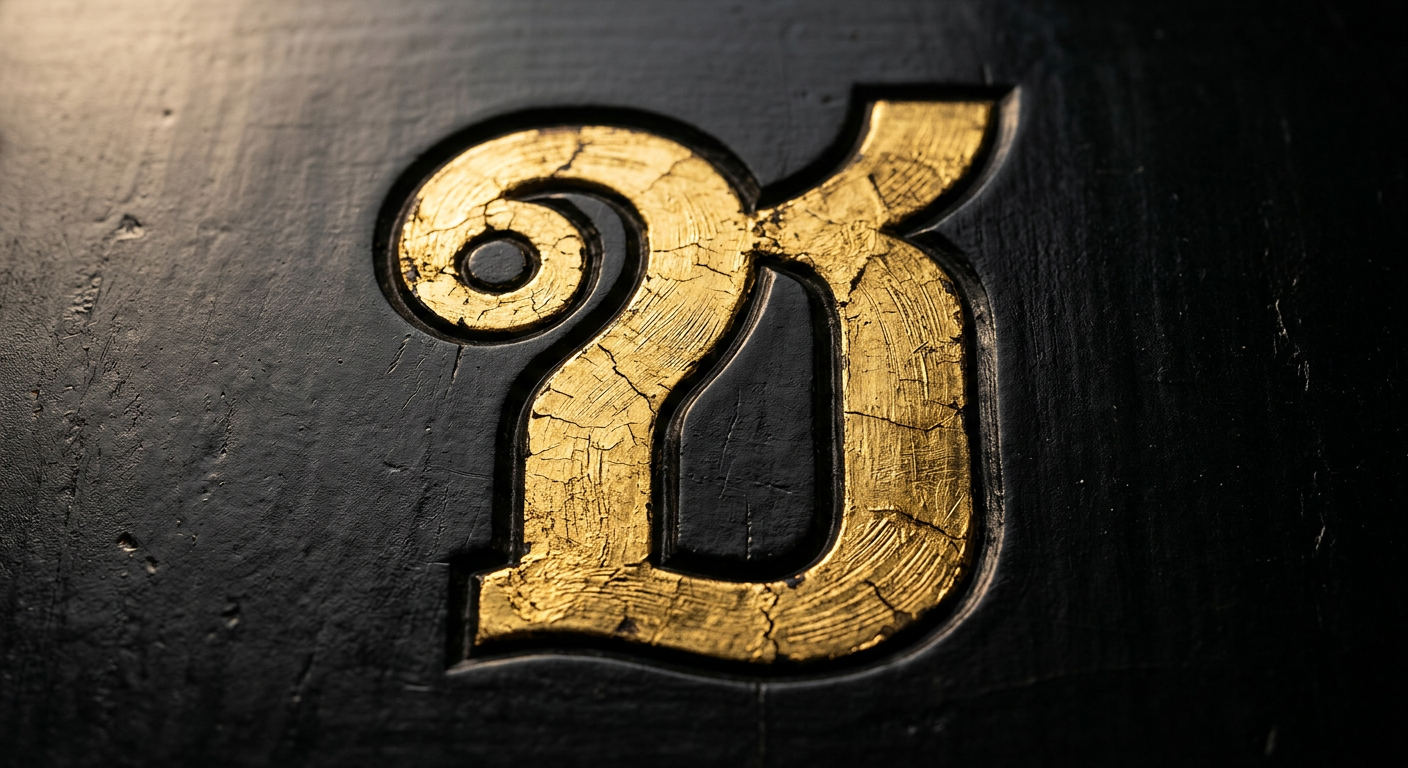
What you’ll make
A convincing gold-foil Thai text effect that matches the 24-karat temple gilding reference rather than generic yellow metallic — usable on wedding invitations, temple collateral, festival posters, and premium packaging. The technique layers five Photoshop effects: a base Thaitone Thong fill, a directional gradient overlay, a scanned foil texture, a Chisel Hard bevel, and a subtle drop shadow. The finished text holds up at print resolution and scales down cleanly for web hero images.
What you need
- Software: Adobe Photoshop 2025 or newer.
- Fonts: Charm (display ornamental) or Niramit (humanist serif). Gold effects read best on high-contrast forms with clear closed counters — avoid thin sans-serifs.
- Texture: One scanned gold foil texture, 300dpi or higher. Free options at Texture.ninja or Unsplash. Ours: save as
gold-foil-scan.jpgin your assets folder. - Colors: Thaitone Thong Ruang (pure gold, #D4A029), Thong Kao (pale gold, #E8C863), and Thong Daeng (red gold, #A87532). All from /colors/thaitone/temple-gold/.
- Time: 30 minutes for a single headline; 10 minutes per additional treatment once the Layer Style is saved.
- Cultural context: Thai gold carries religious weight. Use it with restraint — one gold element per composition, not every line.
Step 1: Prepare the working file
Open File > New, Width 2560 px, Height 1440 px, Resolution 300 pixels/inch, Color Mode RGB Color / 8 bit, Background Black. We work in RGB for the effect build (Layer Styles render more accurately in RGB) and convert to CMYK at export if the destination is print. Save as thai-gold-effect.psd.
Step 2: Set the Thai text and convert to Smart Object
Press T for the Type tool. In the Character panel (Window > Character) set Charm Regular, size 320 pt, tracking 0, leading 380 pt. Type มงคล (mongkhon — “auspicious”). Center the text on the canvas. Right-click the text layer in the Layers panel and choose Convert to Smart Object. This locks the text so the layer styles render against a consistent pixel grid even if you re-edit later (double-click the Smart Object to edit the Thai copy).
Step 3: Apply the base gold Layer Style
Double-click the Smart Object’s layer thumbnail (empty area next to the name) to open Layer Style. Enable Gradient Overlay: Blend Mode Normal, Opacity 100%, click the gradient preview and build a three-stop gradient — Thong Daeng #A87532 at 0%, Thong Ruang #D4A029 at 50%, Thong Kao #E8C863 at 100%. Style Linear, Angle 90° (top-to-bottom light-fall), Scale 100%. This single step takes the text from flat yellow to foil-directional. Do not close the Layer Style panel — keep stacking.
Step 4: Stack the Bevel & Emboss
In the same Layer Style panel enable Bevel & Emboss. Style Inner Bevel, Technique Chisel Hard, Depth 150%, Direction Up, Size 8 px, Soften 2 px. Shading: Angle 120°, Altitude 30°, Highlight Mode Screen white at 75%, Shadow Mode Multiply Thaitone Khram #1B2845 at 50%. Click Gloss Contour and pick the Ring preset — this is the single setting that separates “metallic gold” from “yellow plastic”. Under Bevel & Emboss click Contour (the child checkbox) and set Range 50%. Close the Layer Style panel.
Step 5: Overlay a scanned foil texture
Drag gold-foil-scan.jpg onto the canvas (File > Place Embedded). Scale to cover all Thai text. In the Layers panel right-click the texture layer > Create Clipping Mask so it is clipped to the Smart Object below. Set the texture blend mode to Overlay and opacity to 45%. If the texture’s own tint pushes the gold too cool or warm, add a Hue/Saturation Adjustment Layer (Layer > New Adjustment Layer > Hue/Saturation) directly above and right-click > Create Clipping Mask to constrain it; nudge Hue by ±5 to recenter the gold.
Step 6: Add depth with a drop shadow and inner glow
Re-open the Smart Object’s Layer Style. Enable Inner Glow: Blend Mode Multiply, Opacity 35%, Color Thong Daeng #A87532, Source Edge, Size 12 px. This darkens the interior perimeter of each stroke and gives the foil its deep warm core. Enable Drop Shadow: Blend Mode Multiply, Opacity 45%, Color #000000, Angle 120°, Distance 12 px, Spread 0%, Size 18 px. The 120° angle matches the Bevel’s Angle so the implied light source stays consistent. Right-click the Smart Object’s FX indicator and choose Copy Layer Style — you can paste this onto any future Thai headline.
Step 7: Save the Layer Style preset and export
Open Window > Styles. Click the panel-menu > New Style, name it Thaitone Gold Foil, check Include Layer Effects and Include Layer Blending Options, click OK. The style now sits in your Styles panel and on any future text you just click the style to re-apply in one step. Export: for print (CMYK TIFF) duplicate the file, flatten, convert to CMYK, File > Save As > TIFF with embedded ICC profile. For web (sRGB PNG) duplicate, flatten, File > Export > Quick Export as PNG.
Cultural considerations
Gold in Thai visual culture is reserved — not decorative. Temple gilding uses 24-karat gold leaf at approximately 0.1 micrometers (FAD Technical Report, 2018); the material is sacred. When you use a gold text effect on a piece of design, you are invoking that association. Two rules follow. First, restrict gold to one hierarchical element per composition (the headline, or the monogram, but not both). Second, never apply gold to casual copy — a body paragraph in gold reads as graceless on sight to a Thai audience. The traditional pairing is gold-leaf-on-red-lacquer from the Sukhothai period (1238–1438 CE); for modern work, gold-on-Khram-indigo or gold-on-black are safe. Gold-on-white reads as cheap and should be avoided for ceremonial work.
Common mistakes
- Pure yellow fill (#FFD700) instead of a three-stop Thaitone gradient. Pure yellow reads as plastic, not metal.
- Gloss Contour set to Linear. Produces flat yellow metal, not foil.
- Missing texture overlay. Clean Layer Styles look CGI; a scanned foil at 45% Overlay grounds it.
- Inconsistent light angles. Bevel Angle and Drop Shadow Angle must match. Check both are at 120°.
- Applying the effect to a thin loopless sans. Thin strokes have no surface for the bevel to describe — use weights above 500 and prefer serifs or ornamental display faces for small work.
Source files and next steps
Grab the Thaitone Thong swatch ASE from /colors/thaitone/temple-gold/, the Charm and Niramit font files from /fonts/charm/ and /fonts/niramit/, and the Thaitone Gold Foil Layer Style (.asl) from the pillar assets at /colors/thaitone/. For the fuller treatment of ornamental Thai typography, see the pillar Complete Guide to Thai Typography. Pair this tutorial with Designing Thai Wedding Invitations in Photoshop — the gold foil effect is the headline treatment on most Thai wedding invites.
Information verified as of April 2026
Sources
- Thai temple gilding uses 24-karat gold leaf at approximately 0.1 micrometers thickness, producing the characteristic warm-orange tonality that print gold effects attempt to simulate.—Fine Arts Department, Ministry of Culture, Thailand — Conservation of Gilded Temple Surfaces (FAD Technical Report, 2018) (accessed Apr 7, 2026)
- The Thaitone 'Thong' (ทอง) family documents 14 gold variants ranging from greenish pale gold (#E8C863) to deep reddish royal gold (#A87532).—Pairoj Pittayamatee's Thaitone research, Silpakorn University — as documented by the Thai Ministry of Culture in สีไทยโทน (Thai Tone Colour), 2015 (accessed Apr 9, 2026)
- Photoshop's Bevel & Emboss with Chisel Hard technique contour produces the high-contrast edge that reads as metallic foil rather than painted gold.—Adobe — Apply layer effects in Photoshop, official documentation (2024 revision) (accessed Apr 6, 2026)
- Sukhothai period (1238–1438 CE) established the gold-leaf-on-red-lacquer palette that remains canonical for ceremonial Thai typography.—Fine Arts Department, Ministry of Culture, Thailand — Sukhothai Period Decorative Arts (FAD Publications) (accessed Apr 7, 2026)